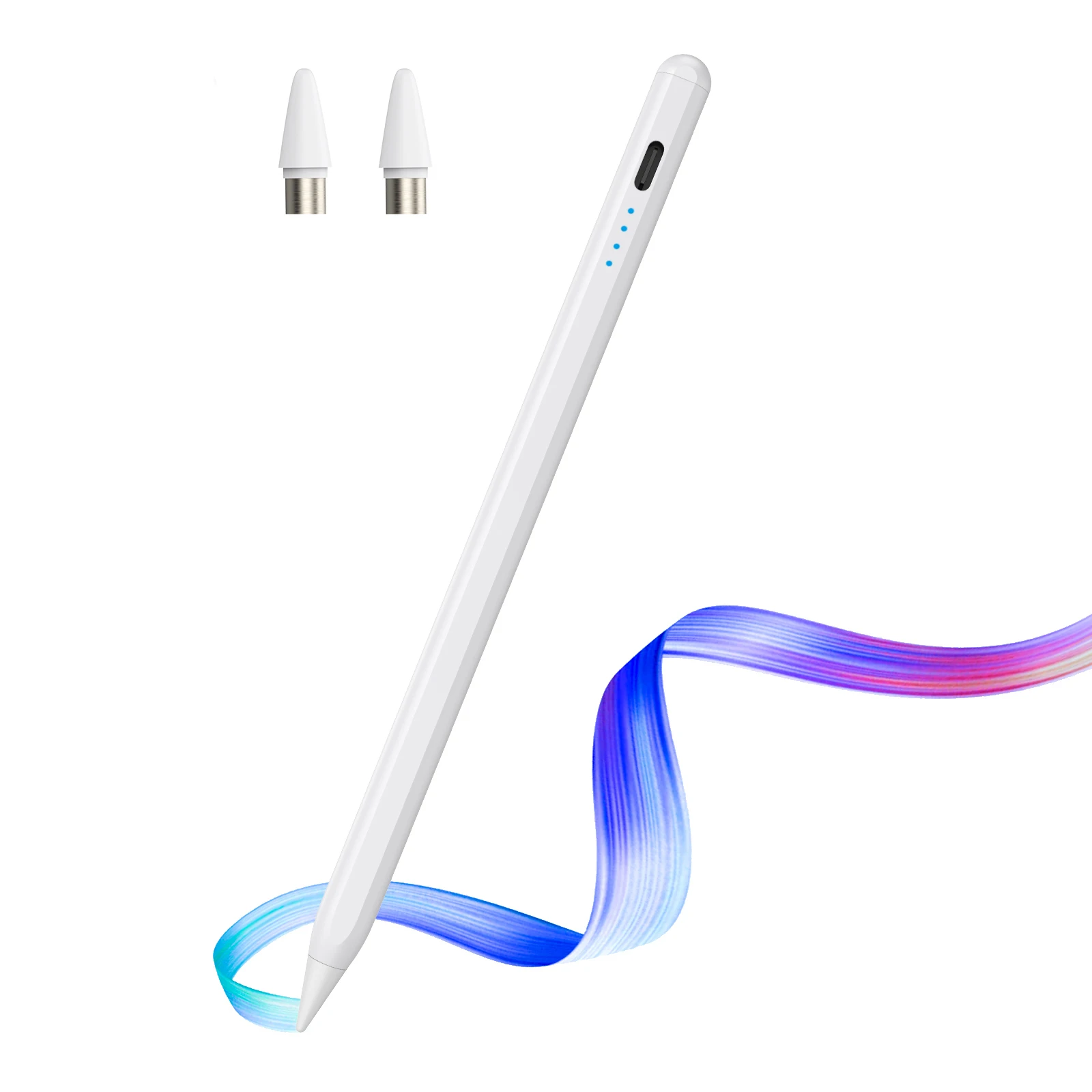
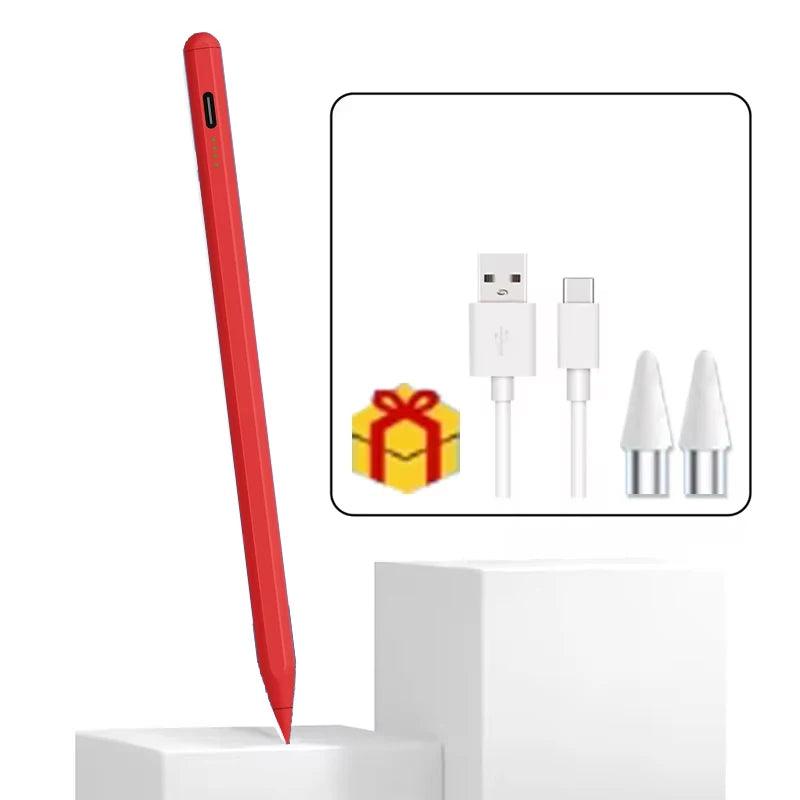
P+7 Universal Stylus Pen For Android IOS Capacitive Screen Touch Pen For iPad Apple Pencil For Huawei Xiaomi Samsung Tablet Pen
P+7 Universal Stylus Pen For Android IOS Capacitive Screen Touch Pen For iPad Apple Pencil For Huawei Xiaomi Samsung Tablet Pen
Couldn't load pickup availability
Secure checkout
🚚 Shipping Policy
🚚 Shipping Policy
Free U.S. shipping on orders over $50.
We offer quick and dependable shipping. Orders arrive within 7–12 business days, complete with tracking updates.
↩️ Money back Guarantee
↩️ Money back Guarantee
Shop with confidence — enjoy easy, hassle-free returns within 30 days. Your satisfaction is our priority.
SPECIFICATIONS
Battery Included: no
Brand Name: p+7
Choice: yes
Compatible Brand: Palm
High-concerned chemical: None
Material: Metal
Origin: Mainland China
Type: Active Stylus
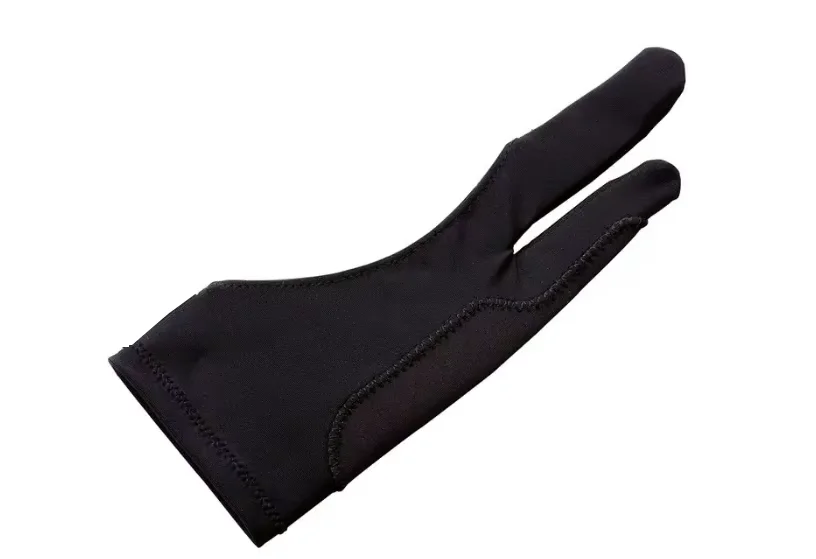
If you need to prevent accidental touches (i.e., writing with your hand on the screen), you need to purchase this type of glove. However, this does not include a stylus, so please pay attention when purchasing to avoid any disputes.
Portable and Compact
Its compact size makes it easy to carry around, perfect for on-the-go professionals and students.
Designed for Touch Screens
Specifically designed for touch screen devices, it provides a smooth and responsive writing experience, enhancing your digital interaction.
High-Quality Material
Crafted from durable metal, this stylus pen ensures longevity and resistance to wear and tear, making it a reliable tool for daily use.
Active Stylus Technology
As an active stylus, it offers precision and accuracy, ideal for drawing, sketching, and taking notes on capacitive screens.
This product does not have Bluetooth function, it can be used without
Bluetooth connection, so there is no Bluetooth connection problem, please
note.
Special Note: Although the product is a universal pen, it does not work with devices that do not have palm rejection feature. Such as Samsung tablets, Samsung, some microsoft tablets, etc.
Also, please make sure to turn off the iPad's Apple Pencil Only option when using it.
We will pack with cotton bags to avoid damage.
Please watch the following video and the following red text description before using, to avoid misunderstanding as a quality due to incorrect use.
1. Please use the provided anti-accidental-touch gloves when using the universal pen.
2. The universal pen needs to be tilted at 15 degrees when used and cannot be used vertically.
3. The stylus cannot be used while the tablet is charging, and the stylus cannot be used while it is in use.
4. If touch disconnection occurs, it may be because a thicker protective film is used. It is recommended to use a thin protective film. General pens cannot use paper-like films as this will cause touch disconnection.
5. If the pen tip cannot be used, please try replacing it with a spare pen tip.
6. If the screen of your tablet or phone has been replaced, it may become unusable due to touch failure.
7. If you are not wearing anti-touch gloves, please do not touch the tablet or mobile phone screen to avoid being unable to use it.
Note: It is not recommended to use universal capacitive stylus with Lenovo Xiaoxin, Teclast Realme, Readboy tabletOnePlus BBK or learning machine, as it will cause high probability of touch disconnection.
8.If you connect your original pen, then when using the universal pen, you need to disconnect the original pen so that the universal pen can write normally.

How to set up some software:
1、SketchBook
1. Open the "SketchBook" software.
2. Click on the "Main Menu".
3. Click on "Preferences".
4. Click onGeneral".
5. Turn on/off "Pen Mode".
2、Procreate
1. Open the "Procreate" software
2. Click the top left corner of the painting interface, click the wrench
3. Click on gesture control
4. Select enable finger painting
3、GoodNote
1. Open the "GoodNote" software
2. Click on the top right corner of the painting page, click on the three option
3. Scroll down to select the stylus and prevent accidental touches
4. Click on the smart stylus, select none inside
4、NOtability
1. Open the "Notability" app
2. Open the drawing page, click the three dots option in the top right corner
3. Click Information, disconnect Apple Pencil
5、Notes
1. Update to the latest version
2. Open the "Notes " app
3. Click on the painting page and select the three in the lower right corner
4. Click on the pen palette settings and scroll to the bottom 5. Turn on finger painting
6.Apple iPad Notes
1. Open the tablet settings and find Apple Pencil
2. Turn off Scribble and Doodle
3. Open the page and select the stroke
7.Paint the World
1. Open the "Paint the World" software
2. Open the painting page, click the gear in the top corner
4. Close "Pen Mode"
8.Noteshelf
1. Open the "Noteshelf" software
2. Open the drawing page, click the three dots in the top right
3. Select the stylus
4. Turn off the "Apple Pencil" mode